Dynatrace
Dynatrace 백엔드 로그를 OpenReplay 세션 리플레이와 통합하여 모니터링 및 디버깅 기능을 확장하는 방법을 알아봅니다.
이 통합은 Cloud(Serverless, Dedicated) 및 Self-Host (Community, Enterprise) 사용자에게 제공됩니다.
1. Dynatrace 자격 증명 생성
Section titled 1. Dynatrace 자격 증명 생성Dynatrace에서 필요한 자격 증명을 얻으려면 다음 단계를 따르세요.
- Dynatrace 계정에 로그인합니다.
- Account Management로 이동합니다.
- OAuth 클라이언트를 만듭니다.
- Identity & Access Management를 클릭합니다.
- OAuth clients를 선택합니다.
- Create client를 클릭하여 필요한 자격 증명을 생성합니다.
- 자격 증명을 저장합니다.
- 클라이언트를 만든 후 다음 항목을 저장합니다.
- Client ID
- Client Secret
- Account URN
environment ID를 확인합니다.// Example Dynatrace URL: https://rzr85764.app.dynatrace.com/ Environment ID: rzr85764
2. openReplaySession.id를 백엔드로 전달
Section titled 2. openReplaySession.id를 백엔드로 전달Dynatrace 로그를 OpenReplay 세션과 연결하려면 추적하려는 모든 요청에서 고유한 세션 ID인 openReplaySession.id를 프론트엔드에서 백엔드로 전달해야 합니다.
프론트엔드 API 요청에 openReplaySession.id 포함
Section titled 프론트엔드 API 요청에 openReplaySession.id 포함프론트엔드 코드를 수정하여 API 요청 헤더에 openReplaySession.id를 추가합니다.
// JavaScript Example for for Single Page Applications (SPA):

// Import OpenReplay
import { tracker } from '@openreplay/tracker';

// Initialize the tracker
tracker.configure({
  projectKey: 'YOUR_PROJECT_KEY',
  ingestPoint: "https://openreplay.mydomain.com/ingest", // when dealing with the self-hosted version of OpenReplay
});

// Start the tracker and wait for it to resolve
tracker.start().then(() => {
  // Get the session ID after the tracker has started
  const sessionId = tracker.getSessionID();

  const headers = {
    'Content-Type': 'application/json',
  };

// Get the session ID
const sessionId = tracker.getSessionID();

const headers = {
  'Content-Type': 'application/json',
};

if (sessionId) {
  headers['openReplaySession.id'] = sessionId;
}

// Make the API request
fetch('/api/endpoint', {
  method: 'GET', // or 'POST', etc.
  headers,
  // ...other options
})
  .then(response => {
    // Handle response
  })
  .catch(error => {
    // Handle error
  });
백엔드 로그에 openReplaySession.id 포함
Section titled 백엔드 로그에 openReplaySession.id 포함백엔드 애플리케이션에서 수신한 요청의 openReplaySession.id를 추출하여, openReplaySession.id=<sessionId> 형식의 키-값 쌍으로 로그에 포함합니다.
//  Example.....
// Middleware to extract the session ID
app.use((req, res, next) => {
  const sessionId = req.headers['openreplaysession.id'];
  req.sessionId = sessionId; // Attach to request object
  next();
});

// When logging events or errors
app.get('/api/endpoint', (req, res) => {
  // Your logic here

  // Log with the session ID in the required format
  console.log(`openReplaySession.id=${req.sessionId} - Endpoint accessed`);

  res.send('Success');
});

// Error handling middleware
app.use((err, req, res, next) => {
  console.error(`openReplaySession.id=${req.sessionId} - Error: ${err.message}`);
  res.status(500).send('Internal Server Error');
});
백엔드 로그에 openReplaySession.id를 포함하면 Dynatrace가 특정 OpenReplay 세션과 연결된 로그를 수집할 수 있습니다. 이를 통해 OpenReplay에서 세션 리플레이를 보는 동안 해당 로그도 함께 확인할 수 있으므로, 사용자 상호작용과 백엔드 로그를 한눈에 파악할 수 있습니다.
3. Dynatrace에서 사용자 지정 로그 속성 만들기
Section titled 3. Dynatrace에서 사용자 지정 로그 속성 만들기Dynatrace에서 사용자 지정 로그 속성을 만들어 로그에서 openReplaySession.id를 추출하도록 설정합니다.
- Dynatrace SaaS 계정에 접속합니다.
- 설정으로 이동합니다.
- Log Monitoring > Custom attributes를 선택한 다음 Add custom attribute를 선택합니다.
- 키에
openReplaySession.id를 입력합니다.
참고: 자세한 단계는 Dynatrace 문서의 로그 사용자 지정 속성을 참조하세요.
4. OpenReplay에서 Dynatrace 통합 구성
Section titled 4. OpenReplay에서 Dynatrace 통합 구성OpenReplay 계정에서 다음 3단계를 따라 세션 리플레이와 Dynatrace 백엔드 로그의 연결을 완료합니다.
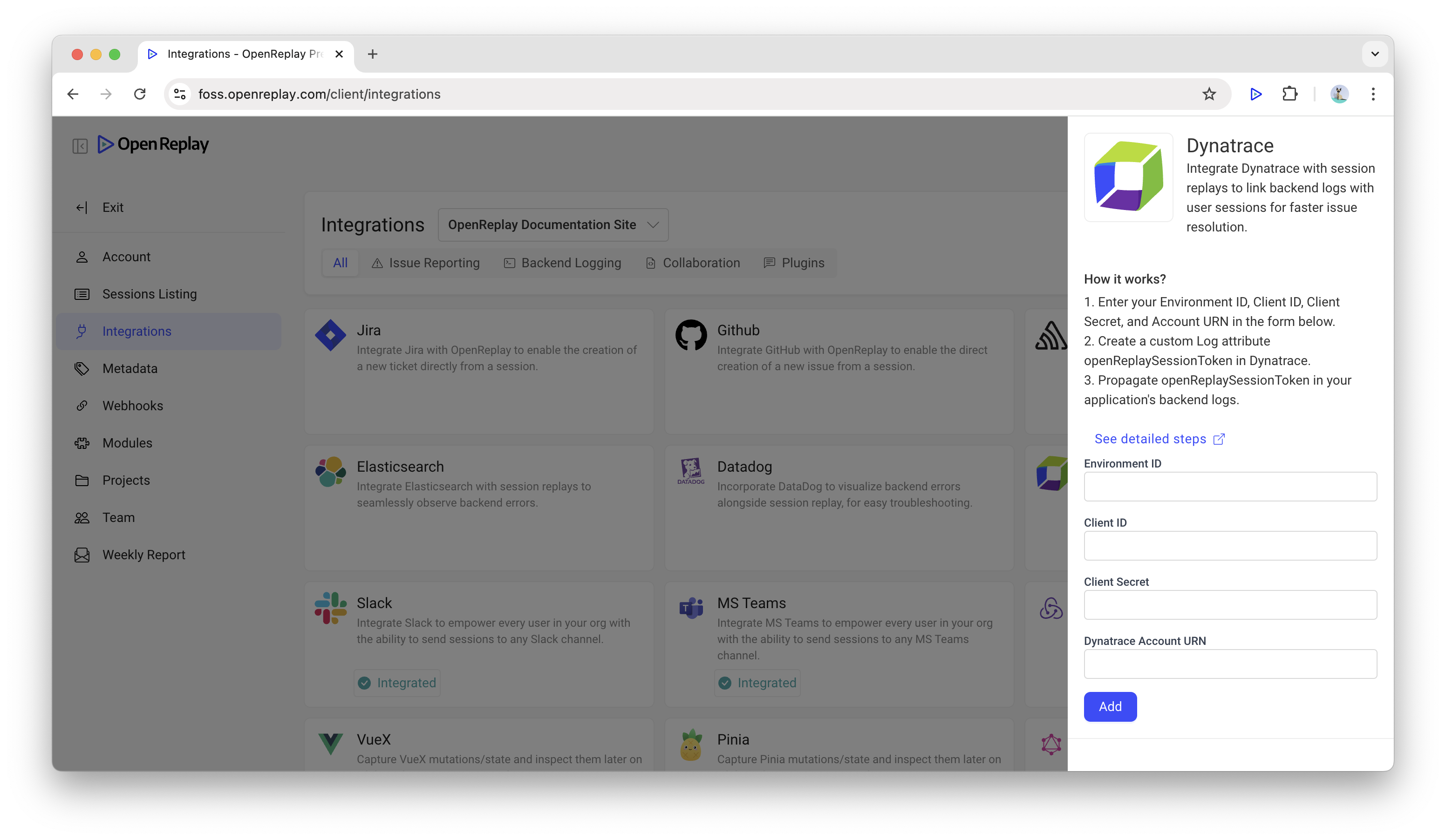
Dynatrace 통합 활성화
Section titled Dynatrace 통합 활성화- OpenReplay에서 Preferences > Integrations로 이동합니다.
- Backend Logging 탭을 선택합니다.
- Dynatrace 통합을 활성화할 프로젝트를 선택합니다. Dynatrace 통합 카드를 찾아 클릭합니다.
Dynatrace 자격 증명 입력
Section titled Dynatrace 자격 증명 입력Dynatrace 통합 사이드바에서 다음을 입력합니다.
- Environment ID: 외부 액세스에 사용하는 Dynatrace 환경 ID입니다.
- Client ID와 Client Secret: 첫 번째 단계에서 저장한 값입니다.
- Dynatrace Account URN: Dynatrace 플랫폼 내에서 사용되는 고유 식별자이며, 이 역시 첫 번째 단계에서 저장한 값입니다.
연결 확인
Section titled 연결 확인- Add를 클릭하여 연결을 테스트합니다. 성공 메시지가 표시되면 통합이 올바르게 설정된 것입니다.
5. OpenReplay에서 Dynatrace 로그 확인
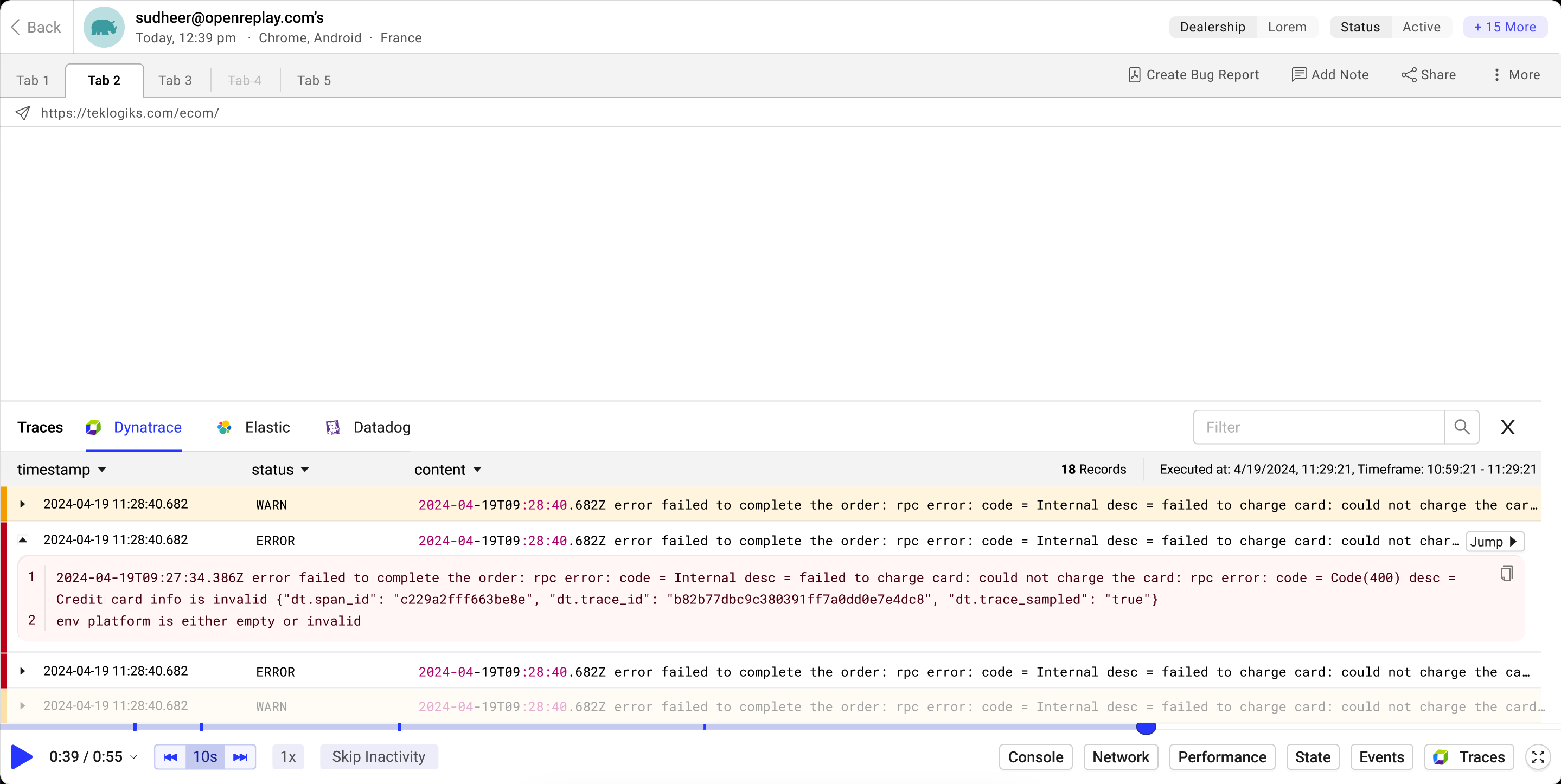
Section titled 5. OpenReplay에서 Dynatrace 로그 확인- OpenReplay에서 세션으로 이동합니다.
- 세션 리플레이를 엽니다.
- Traces 버튼을 클릭합니다.
- 해당 세션과 관련된 Dynatrace 로그가 표시됩니다.
- 로그 항목을 클릭하면 자세한 정보를 볼 수 있습니다.
상태가
WARN,ERROR,INFO,NONE인LOG유형의 로그는 Dynatrace Log Monitoring API v2를 사용하여 가져옵니다.
질문이 있으신가요?
Section titled 질문이 있으신가요?문제가 발생하면 Slack에 접속하여 커뮤니티의 도움을 받으세요.