MCP Setup
This page walks through installing the OpenReplay MCP app, pointing it at your instance, and signing in.
1. Install the MCP server
Section titled 1. Install the MCP serverAdd the OpenReplay MCP server to your client’s MCP configuration.
Claude Desktop
Section titled Claude DesktopClaude Desktop installs the OpenReplay MCP as a single-click extension (.mcpb bundle):
- Download
openreplay.mcpbfrom the OpenReplay releases page. - Double-click the file — Claude Desktop opens and prompts you to install it as an extension.
- Click Install.
That’s it. There’s no JSON config to edit and no Node toolchain to install.
2. Point the MCP at your OpenReplay instance
Section titled 2. Point the MCP at your OpenReplay instanceIn Claude Desktop, open the extension’s settings panel and set the OpenReplay URL field to the address you use in the browser — https://app.openreplay.com for Cloud, or your own domain for self-hosted. The MCP derives the API host automatically.
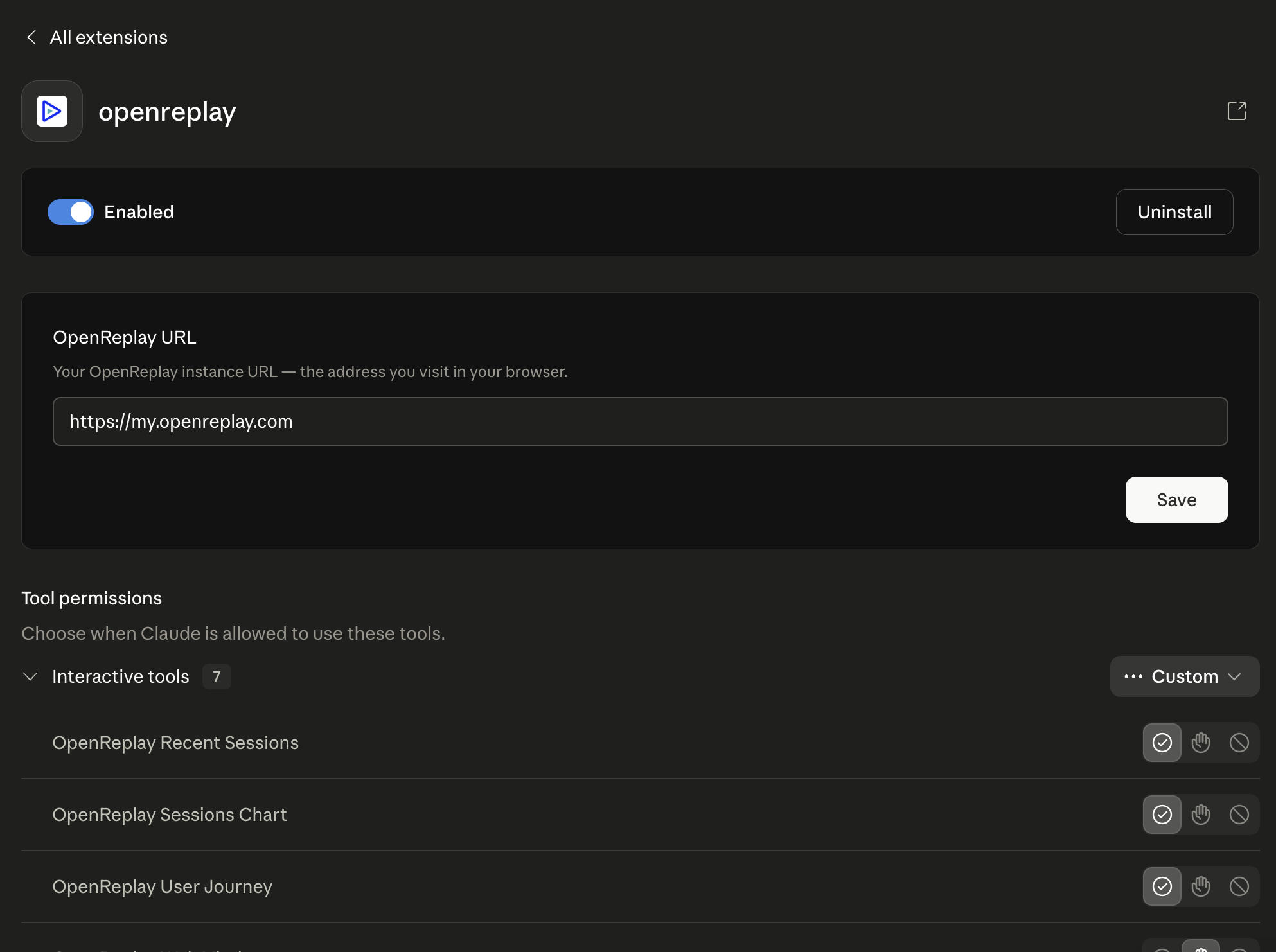
For ChatGPT and Codex, the URL comes from the OPENREPLAY_BACKEND_URL env var you set in step 1.
You can also switch instances at any time from within the chat: “use OpenReplay at https://openreplay.mycompany.com”.
3. Log in via the browser
Section titled 3. Log in via the browserThe MCP uses a browser-based authorization flow — you never have to paste your password into the chat.
Step by step
Section titled Step by step1. In the chat, say:
Log me in to OpenReplay2. Claude calls the login_browser tool and replies with an …/mcp/authorize?state=… URL. On most systems it also opens the link automatically in your default browser.
3. In the OpenReplay tab, confirm the access request by clicking Authorize.
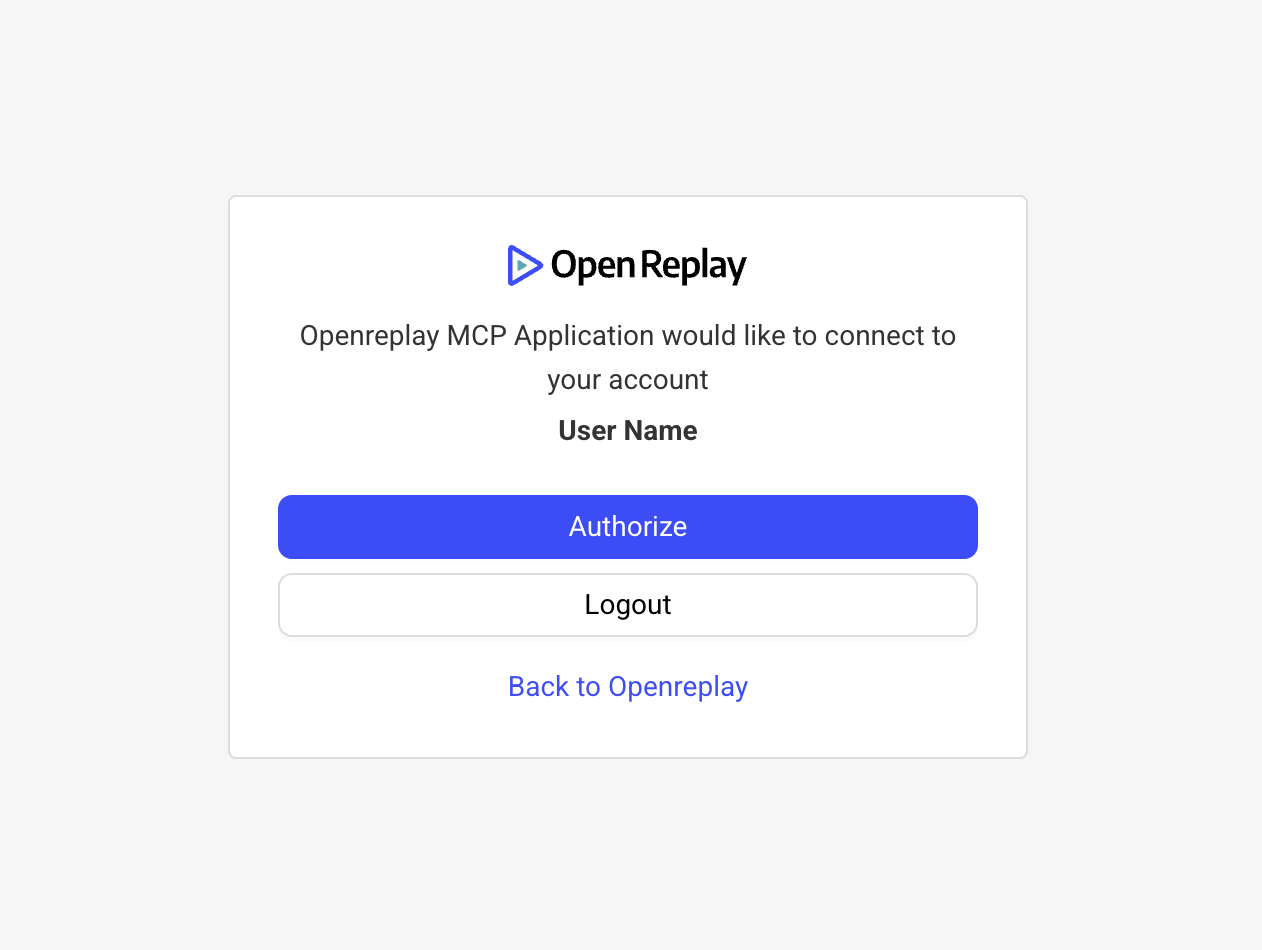
4. Switch back to Claude and say:
I authorized it5. Claude finalizes the login (via the complete_login tool) and confirms a token was generated. The token is persisted locally, so you don’t need to repeat this on the next chat.
Verifying the connection
Section titled Verifying the connectionOnce logged in, ask Claude:
List my OpenReplay projectsIf everything is wired up, you’ll see your project names and IDs. From there, head to the Capabilities page to see what else you can ask for.
Have questions?
Section titled Have questions?If you run into issues, join our Slack or post on the Forum.