Segments
Segments are saved combinations of events and filters that you build in OmniSearch. Once created, a segment becomes a reusable filter you can drop into the session search at any time, share with your team, or apply from a link.
Use segments any time you find yourself rebuilding the same search over and over — for example, “logged-in users who hit a checkout error on mobile,” or “sessions with rage clicks from paid-campaign traffic.”
Creating a segment
Section titled Creating a segmentStart by building the search you want to save. Add the events and filters that define the group of sessions you’re interested in.
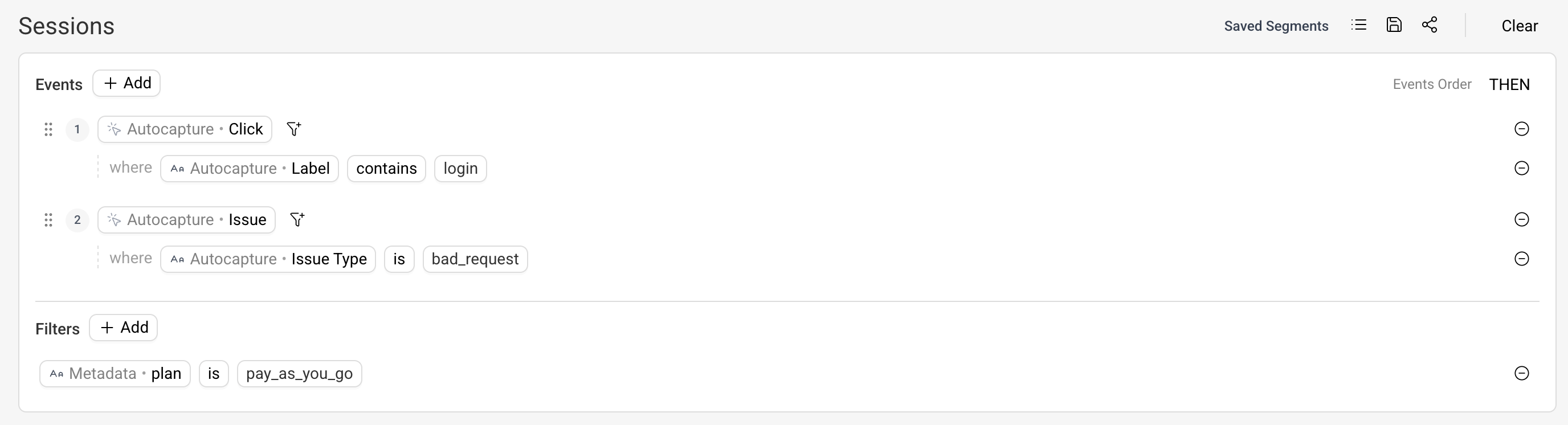
Once the search returns what you expect, save it as a segment and give it a descriptive name. The name is how teammates will recognize it in the list.
Applying a segment
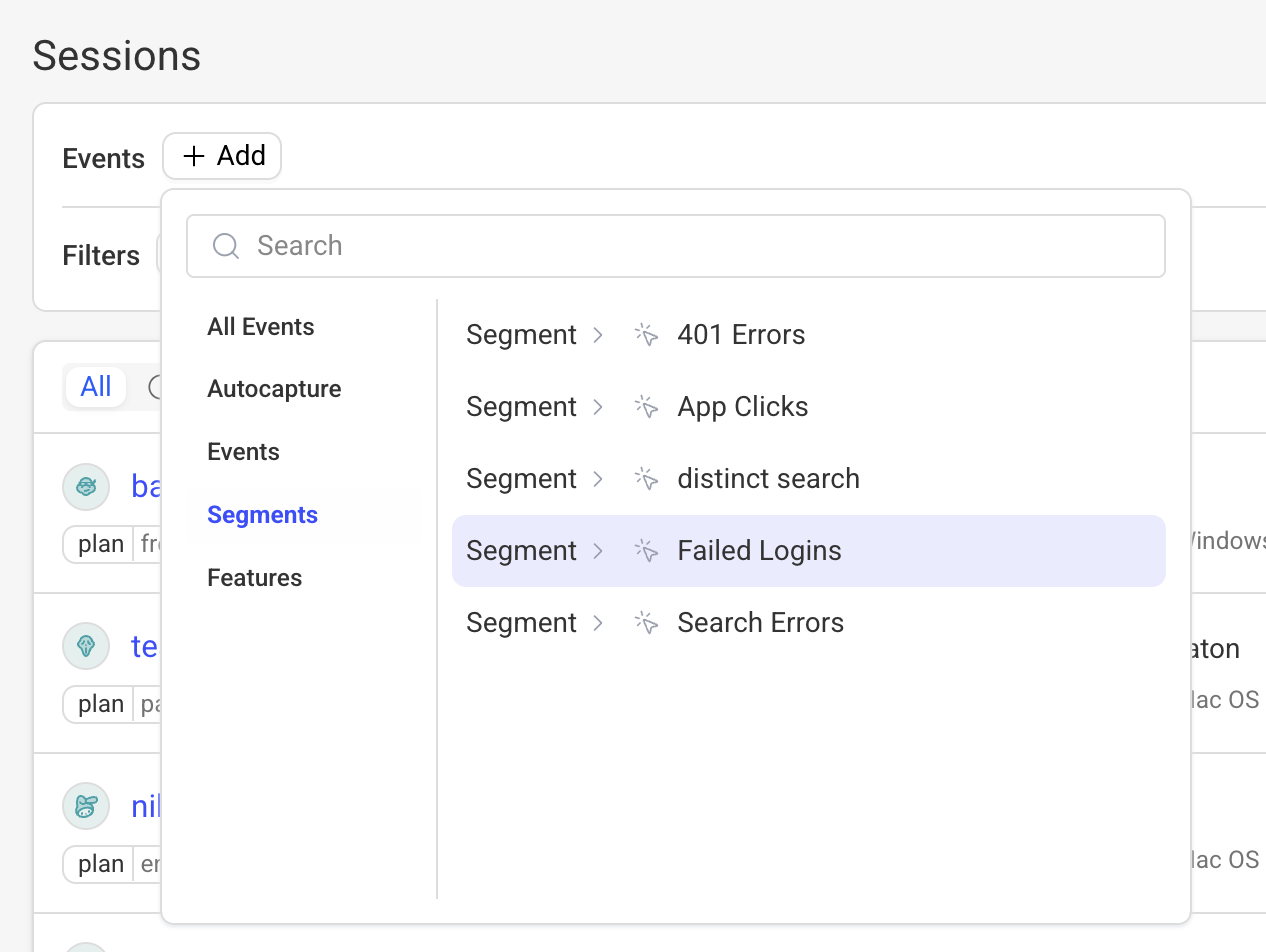
Section titled Applying a segmentSaved segments appear as a dedicated filter inside the session search filters field. Pick the one you want and it expands into the underlying events and filters, which you can then further refine without affecting the saved segment.
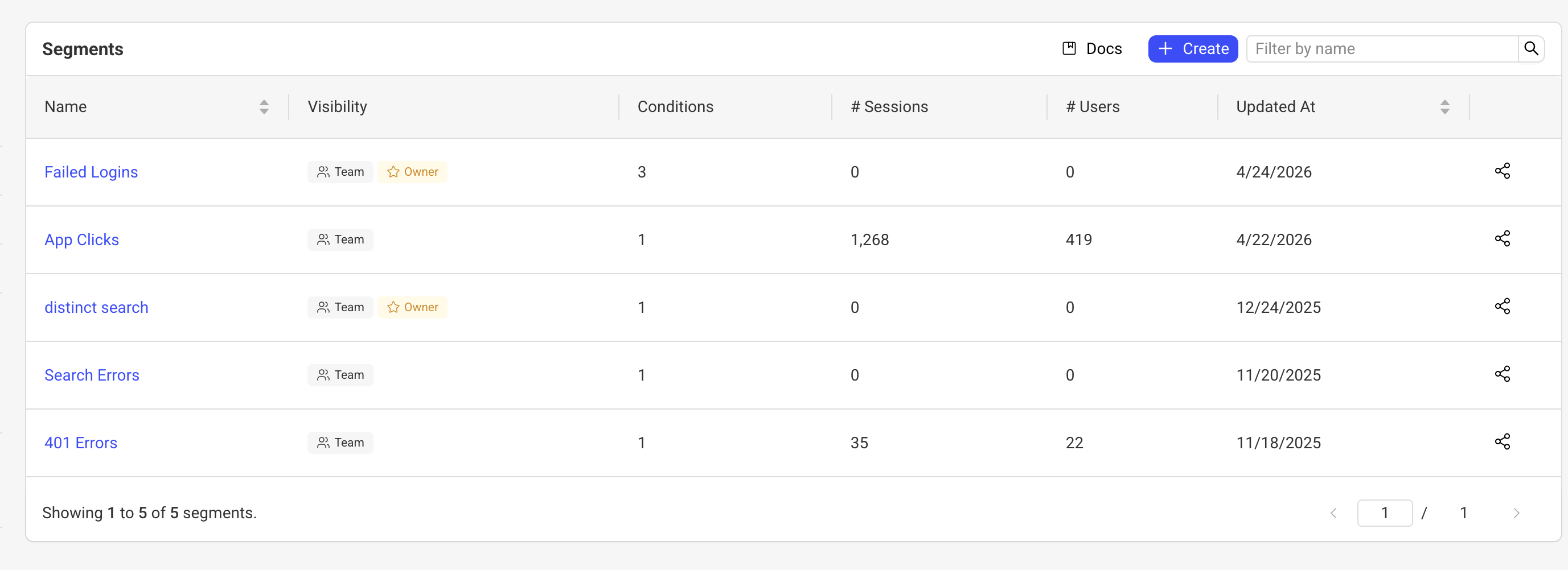
Sharing segments
Section titled Sharing segmentsSegments are shared with everyone on your team automatically, so a segment created by one teammate is immediately available to the rest. You can also share a specific view by copying the URL — opening it loads the same segment and filter state for the recipient.
Managing segments
Section titled Managing segmentsFrom the segments list you can:
- Rename a segment to keep the library easy to scan.
- Delete segments that are no longer useful.
Deleting a segment only removes the saved definition — any search you’ve already applied it to stays intact until you reload.
Have questions?
Section titled Have questions?If you still have questions, reach out to our team on our Slack community.